Angular 2 SetUP with NodeJS
Angular is a platform that makes it easy to build applications with the web. Angular combines declarative templates, dependency injection, end to end tooling, and integrated best practices to solve development challenges. Angular empowers developers to build applications that live on the web, mobile, or the desktop
| Mobile & desktop. | DEVELOP ACROSS ALL PLATFORMS |
|---|---|
 |
Learn one way to build applications with Angular and reuse your code and abilities to build apps for any deployment target. For web, mobile web, native mobile and native desktop. |
TypeScript is a typed superset of JavaScript that compiles to plain JavaScript.
TypeScript compiles to clean, simple JavaScript code which runs on any browser, in Node.js, or in any JavaScript engine that supports ECMAScript 3 (or newer).
AngularJS 2 « The code samples are written using TypeScript. Most Angular code can be written with just the latest JavaScript, using types for dependency injection, and using decorators for metadata.
Responsive Single Page Application
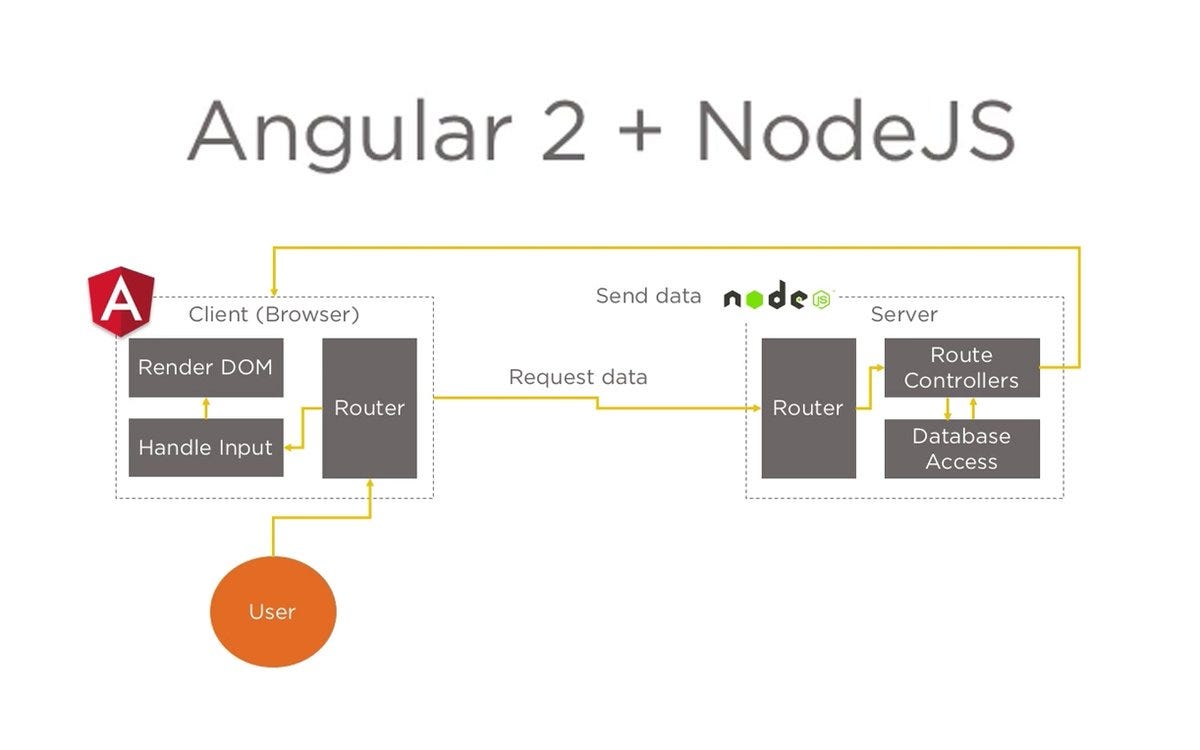
Node.js® is a JavaScript runtime built on Chrome's V8 JavaScript engine.
Node allows you to spin up a lightweight web server to host your application locally in your system. NPM (Node Package Manager) comes with node.js by default. NPM allows you to manage your dependencies.
- To check if you have Node.js installed, run this command in your terminal: Node and V8 versions.
NOTE: Set it's system path to installation folder «
C:\Program Files\nodejs\;
C:\Users\yashwanth.m>node --version
v6.10.2

C:\Users\yashwanth.m>node -p process.versions.v8
5.1.281.98
npm makes it easy for JavaScript developers to share and reuse code, and makes it easy to update the code that you’re sharing, so you can build amazing things.
npm is installed with Node.js
npm is distributed with Node.js- which means that when you download Node.js, you automatically get npm installed on your computer.
To confirm that you have npm installed you can run this command in your terminal: npm versions
C:\Users\yashwanth.m>npm --version
3.10.10
To install and Remove a package use this commands « npm-install, npm-uninstall
npm consists of three distinct components:
- Use the website to discover packages, set up profiles, and manage other aspects of your npm experience.
For example, you can set up Orgs (organizations) to manage access to public or private packages. - The registry is a large public database of JavaScript software and the meta-information surrounding it.
Associating a scope with a registry
npm login --registry=http://reg.example.com --scope=@myco
npm config set @myco:registry http://reg.example.com
- The CLI runs from a terminal. This is how most developers interact with npm.
npm is the package manager for the Node JavaScript platform. It puts modules in place so that node can find them, and manages dependency conflicts intelligently.
It is extremely configurable to support a wide variety of use cases. Most commonly, it is used to publish, discover, install, and develop node programs.
npm puts stuff in npm-folders. Packages are dropped into the node_modules folder under the prefix.
« Local install (default): puts stuff in ./node_modules of the current package root.
« Global install (with -g): puts stuff in /usr/local or wherever node is installed.
Scoped packages are installed the same way, except they are grouped together in a sub-folder of the relevant node_modules folder with the name of that scope prefix by the @ symbol,
e.g. npm install @myorg/package would place the package in {prefix}/node_modules/@myorg/package.
The scope folder (@myorg) is simply the name of the scope preceded by an @ symbol, and can contain any number of scoped packages.
A scoped package is installed by referencing it by name, preceded by an @ symbol, in npm install:
npm install @myorg/mypackageOr in package.json:
{
    "dependencies": {
      "@myorg/mypackage": "^1.3.0"
    }
}
Note that if the @ symbol is omitted, in either case, npm will instead attempt to install from GitHub; see npm-install.
As a consumer, you can specify which kinds of updates your app can accept in the package.json file.
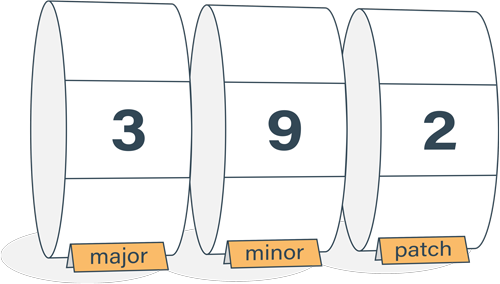
Semantic Versioning uses three-part version number.
| 3 | . | 9 | . | 2 |
|---|---|---|---|---|
| major | minor | patch |
| bytearcher | jontejada |
|---|---|
 |
 |
If you were starting with a package 3.9.2, this is how you would specify the ranges:
| Release | symbol | package.json | version range |
|---|---|---|---|
| Patch releases | tilde (~) | 3.9 or 3.9.x or ~3.9.4 | 3.9.* |
| Minor releases | caret (^) | 3 or 3.x or ^3.9.2 | 3.. |
| Major releases | * or x | ..* |
WIKI Google pledged to do twice-a-year upgrades. Major version will be released every six months because of Semantic Versioning.
Angular 2.0 was announced at the ng-Europe conference 22-23. October 2014. The drastic changes in the 2.0 version created considerable controversy among developers. On April 30, 2015, the Angular developers announced that Angular 2 moved from Alpha to Developer Preview. Angular 2 moved to Beta in December 2015, and the first release candidate was published in May 2016. The final version was released on September 14, 2016.
On 13 December 2016 Angular 4 was announced, skipping 3 to avoid a confusion due to the misalignment of the router package's version which was already distributed as v3.3.0. The final version was released on March 23, 2017. Angular 4 is backward compatible with Angular 2.
Angular version 4.3 is a minor release, meaning that it contains no breaking changes and that it is a drop-in replacement for 4.x.x.
Features in version 4.3
- Introducing HttpClient, a smaller, easier to use, and more powerful library for making HTTP Requests.
- New router life cycle events for Guards and Resolvers. Four new events: GuardsCheckStart, GuardsCheckEnd, ResolveStart, ResolveEnd join the existing set of life cycle event such as NavigationStart.
- Conditionally disable animations.
NPM package @angular/cli.
npm uninstall -g @angular/cli
npm install -g @angular/cli@1.2.6
cmd observed msg
C:\Users\yashwanth.m>ng --version
You are running version v6.10.2 of Node.js, which is not supported by Angular CLI v6.
The official Node.js version that is supported is 8.9 and greater.