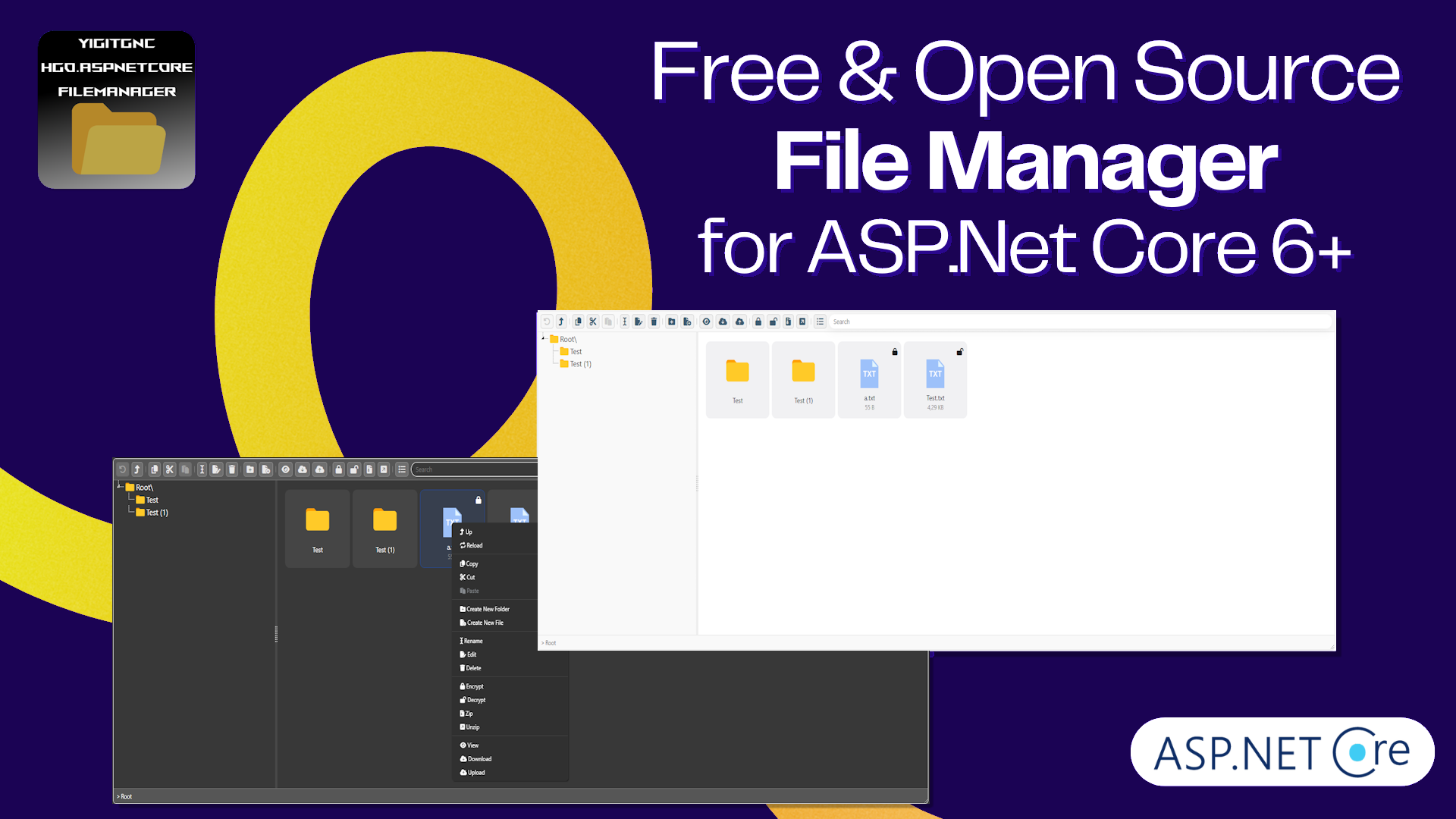
YG.ASPNetCore.FileManager is an "enhanced" fork of HGO.ASPNetCore.FileManager free, open source, feature rich and easy to use file explorer/manager component for ASP.Net Core 8, 9, and 10 with MIT license!
- Multi-target support: .NET 8, .NET 9, and .NET 10
- Enhanced Code Editor: Smart file-type detection with syntax highlighting for JSON, JSONC, JavaScript, TypeScript, CSS, Python, SQL, YAML, Markdown, PHP, C#, and more
- Improved Save Experience: Editor stays open after save with toast notifications - no more reopening files!
- Keyboard Shortcuts: Ctrl+S to save instantly
- Unsaved Changes Indicator: Yellow dot shows when you have unsaved changes
- Close Warning: Prevents accidental data loss when closing with unsaved changes


- NEW! Enhanced Code Editor with smart syntax highlighting for 20+ file types (JSON, JSONC, JS, TS, CSS, Python, SQL, YAML, Markdown, PHP, C#, etc.)
- NEW! Keyboard shortcuts (Ctrl+S to save) with toast notifications
- NEW! Unsaved changes indicator and close warning to prevent data loss
- File Encryption (Protect your files in the event of a data breach)
- Multiple Language Support with fully customizable language option
- Enum Member Access for type safety
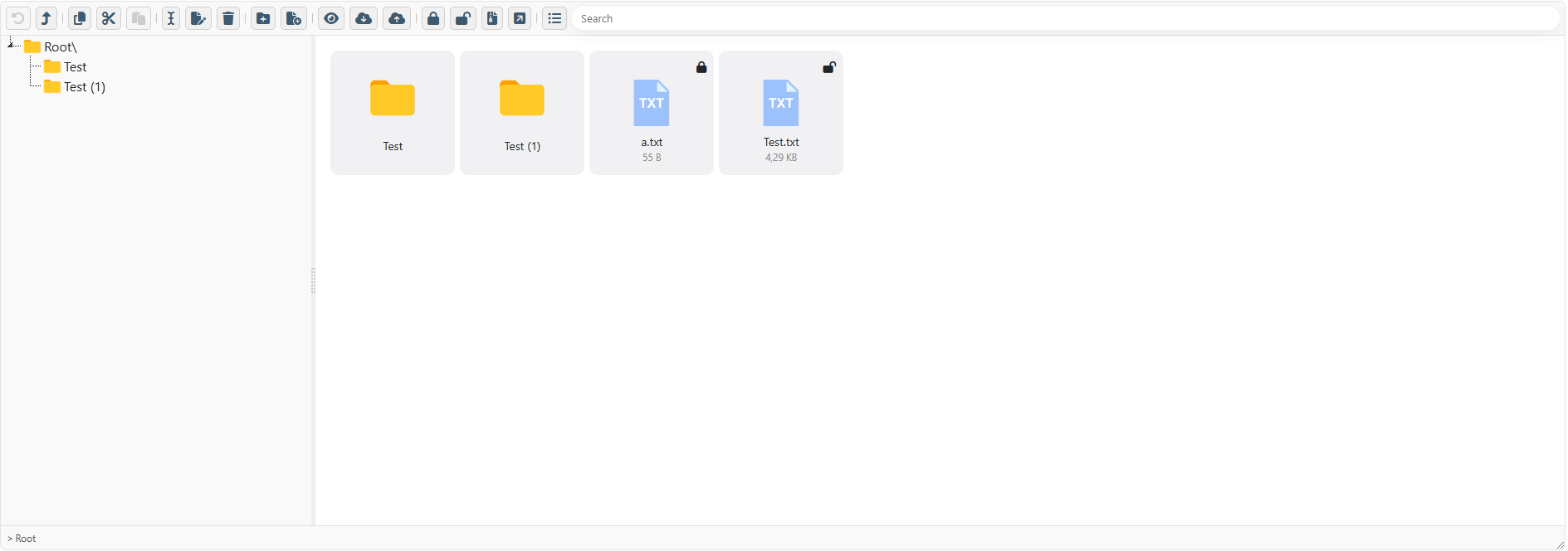
- Manage server's files from client side
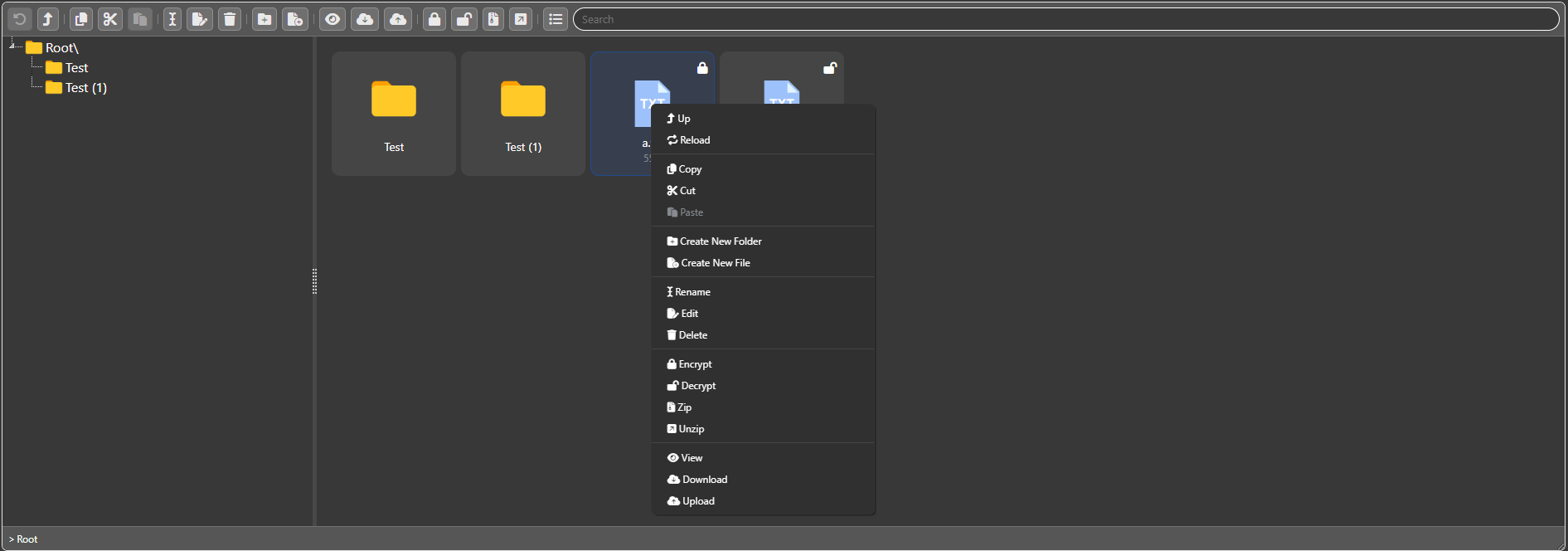
- IMPROVED Copy & cut & paste functionality
- Compress & extract archive files (Rar, Zip, Tar, Tar.GZip, Tar.BZip2, Tar.LZip, Tar.XZ, GZip, 7Zip)
- Download & upload
- Rename & delete files/folders
- Full-featured code editor powered by CodeMirror
- Create new file/folder
- Cross platform (Compatible with Windows & Linux & macOS file system)
- Search
- Ability to enable/disable features
- Ability to control disk space usage
- and more ...
At first you should install YG.ASPNetCore.FileManager from NuGet:
Install-Package YG.ASPNetCore.FileManager
Or via the .NET Core command line interface:
dotnet add package YG.ASPNetCore.FileManagerEither commands, from Package Manager Console or .NET Core CLI, will download and install YG.ASPNetCore.FileManager and all required dependencies.
Now you need to add YG.ASPNetCore.FileManager to the ASP.NET Core services container. Open Program.cs and insert the marked lines into Program.cs file:
using YG.ASPNetCore.FileManager;

var builder = WebApplication.CreateBuilder(args);

// Add services to the container.
builder.Services.AddControllersWithViews();

// YG.AspNetCore.FileManager -------
builder.Services.AddYGFileManager();
//-----------------------------------

var app = builder.Build();

// Configure the HTTP request pipeline.
if (!app.Environment.IsDevelopment())
{
    app.UseExceptionHandler("/Home/Error");
    // The default HSTS value is 30 days. You may want to change this for production scenarios, see https://aka.ms/aspnetcore-hsts.
    app.UseHsts();
}

app.UseHttpsRedirection();
app.UseStaticFiles();

// YG.AspNetCore.FileManager -------
app.UseYGFileManager();
//-----------------------------------

app.UseRouting();

app.UseAuthorization();

app.MapControllerRoute(
    name: "default",
    pattern: "{controller=Home}/{action=Index}/{id?}");

app.Run();
Now you need to create an Action Method to handle server side operations, so open (or create) a Controller class and add the following action method:
[HttpPost, HttpGet]
public async Task<IActionResult> YgApi(string id, Command command, string parameters, IFormFile file)
{
    return await _processor.ProcessCommandAsync(id, command, parameters, file);
}
Also you need to inject IFileManagerCommandsProcessor to you controller contractor method with IoC, so edit your controller contractor method like below:
private readonly IFileManagerCommandsProcessor _processor;

public HomeController(IFileManagerCommandsProcessor processor)
{
    _processor = processor;
}
Now you can add YG.ASPNetCore.FileManager component view to any razor page or view you want:
<div style="height: 550px; margin-bottom:20px">
        @await Component.InvokeAsync("FileManagerComponent", new FileManagerModel(){
            Id = "FM1",
            RootFolder = "files",
            ApiEndPoint = Url.Action("YgApi"),
            Config = new FileManagerConfig(){
                UseEncryption = true,
                UseRecycleBin = true,
                EncryptionKey = "<Your Super Secret Encryption Key>",
                DisabledFunctions = { Command.Delete, Command.Rename },
                Language = new TurkishLanguage(),
            }
        })
</div>
Also you need to reference YG.ASPNetCore.FileManager JavaScript and CSS files to your view:
<!DOCTYPE html>
<html lang="en">
<head>
    <meta charset="utf-8" />
    <meta name="viewport" content="width=device-width, initial-scale=1.0" />

    @*YG.AspNetCore.FileManager Styles*@
    @this.RenderYGFileManagerCss(true)
    @*---------------------------------*@
</head>
<body>
    <div class="container">
        <main role="main" class="pb-3">
        @await Component.InvokeAsync("FileManagerComponent", new FileManagerModel(){
            Id = "FM1",
            RootFolder = "files",
            ApiEndPoint = Url.Action("YgApi"),
            Config = new FileManagerConfig(){
                UseEncryption = true,
                UseRecycleBin = true,
                EncryptionKey = "<Your Super Secret Encryption Key>",
                DisabledFunctions = { Command.Delete, Command.Rename },
                Language = new TurkishLanguage(),
            }
        })
        </main>
    </div>

    @*YG.AspNetCore.FileManager depends on jQuery, so you need to add jQuery reference before (If you don't it will automatically add jquery in newer versions) *@
    <script src="~/lib/jquery/dist/jquery.min.js"></script>

    @*----------------------------------*@

    @*YG.AspNetCore.FileManager Scripts*@
    @this.RenderYGFileManagerJavaScripts()
    @*----------------------------------*@
</body>
</html>
For more information please check the following sample projects:
YG.ASPNetCore.FileManager depends on jQuery library, so you need reference jQuery library before calling RenderYGFileManagerJavaScripts() (If you don't it will automatically add jquery in newer versions)
Thanks to all!