Exploring Source Code
(updated: Jan 20, 2020)
Download or clone locally the source code repo. Start Visual Studio 2019 as an administrator and open the VitaCoreAll.sln solution. You will see a number of folders and projects in the Solution Explorer:
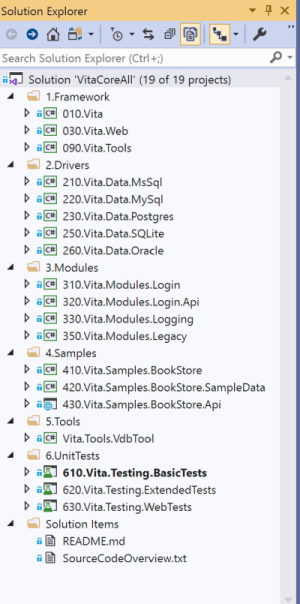
::: VitaCoreAll Solution
The number prefixes in folder and project names are used for explicit 'logical' ordering in Solution Explorer; these prefixes do not appear in assembly names or namespaces. The ordering is setup to match dependency/build order of the projects - top to bottom, so that the dependent items appear below items they depend on.
The projects are grouped into the following folders:
-
Framework - core components of VITA. Includes the projects:
- Vita - core assembly/package, entity CRUD operations
- Vita.Web - integration with WebApi/Asp.NET-core.
- Vita.Tools - tools library, used by tools/tests internally, not published as nuget package
-
Drivers - contains database drivers (providers) for different database servers. The following servers are supported: MS SQL Server, MySql, Postgres, Oracle, SQLite. Each driver is published as a separate nuget package.
-
Modules - blocks of reusable functionality (entites, logic, API) that can be embedded into applications
- Vita.Modules.Login - implements Login functionality for apps that want to keep user login information in local database.
- Vita.Modules.Login.Api - WebApi project implementing REST API for login package.
- Vita.Modules.Logging - assembly/package implementing logging to db functionality. Logging to db is demo-ed in WebTests project.
- Vita.Modules.Legacy - a number of legacy entity modules (EncryptedData, Party, etc). These packages are provided for backward compatibility and support of existing applications; the package, while maintained currently, will not be in active development.
-
Samples - contains a sample application:
- Vita.Samples.BookStore - an online Book store, a class library containing data and business logic. This assembly and app is used in Extended unit tests project.
- Vita.Samples.BookStore.SampleData - sample data generator for the bookstore
- Vita.Samples.BookStore.Api - an ASP.NET Core project, defines API controllers implementing RESTful API for the bookstore application
-
Tools folder
-
vdbtool - command line tool.
Provides the following facilities:
- generating entity definitions from the database objects (DB-first approach).
- generating DB update scripts by comparing entity definitions and target database. Scripts may be used to update production databases in manual mode.
Several sample cfg files are included with the project. For MS Sample databases (AdventureWorks, Northwind) - you can install these databases before you run the entity generator - you can download installation scripts from MS download site.
-
vdbtool - command line tool.
Provides the following facilities:
-
UnitTests - a set of unit-test projects (for purists - these are more like integration tests)
- Vita.Testing.BasicTests - a set of unit tests for basic VITA functionality.
- Vita.Testing.ExtendedTests - advanced tests using BookStore sample model/database.
- Vita.Testing.WebTests - tests for RESTful API of bookstore application; uses Arrest library as REST client to hit the API endpoints.
The best way to approach the VITA framework and understand what it offers is to explore the unit tests - run them, see the result data in the database and explore the test code. Unit tests include many code snippets illustrating various aspects of the framework - basic CRUD capabilities, LINQ engine, logging/diagnostic facilities, Web API integration.
Before running the unit tests you should create the test databases. You need to have the database servers installed locally or available on remote machines; adjust the connection strings in settings files.
For MS SQL Server, Postgres, Oracle - create the following empty databases:
- VitaTest
- VitaBooks
- VitaBooksLogs - this database is used by WebTests project which runs only for MS SQL Server, so create it only for this server.
For other servers:
- SQLite - tests automatically create empty database files
- MySql - MySql treats schema/database terms interchangeably, so you will see 'schemas' created by unit tests as databases in local server.
Disable break on CLR exceptions: Before running the unit tests turn off the 'Break on CLR exceptions' setting in Visual Studio (clear all checkboxes). Use Debug/Exceptions dialog in main VS Menu. Tests and samples throw and handle exceptions, so stopping would disrupt normal test execution.
Unit test projects can be run in 2 modes:
- As regular unit tests in the Test Explorer in Visual Studio. By default the tests run for MS SQL Server; you can change the default server type in the settings file.
- As a console application for all supported database servers - just select the project as 'Startup Project' and run it from Visual Studio (F5). Check the appSettings.json file for the list of servers to run against, make sure you have specific servers available. Check the connection strings.
After running the tests open the database browser tool of your choice (ex: MS SQL Management Studio, SMS) and browse the generated data in the database tables. All database objects are created automatically by unit tests, as part of the automatic schema upgrade.
Inspect the log files in the bin folders - the framework writes logs (including all executed SQLs with stats) into the log files. The WebTests project writes logs to VitaBooksLogs database.
Browse the source code, see how it is all implemented. Enjoy!