yet another procedural CAD and computational geometry system written in python 3, featuring a parametric DSL, BREP modeling via OpenCascade, and comprehensive STL/STEP/DXF export
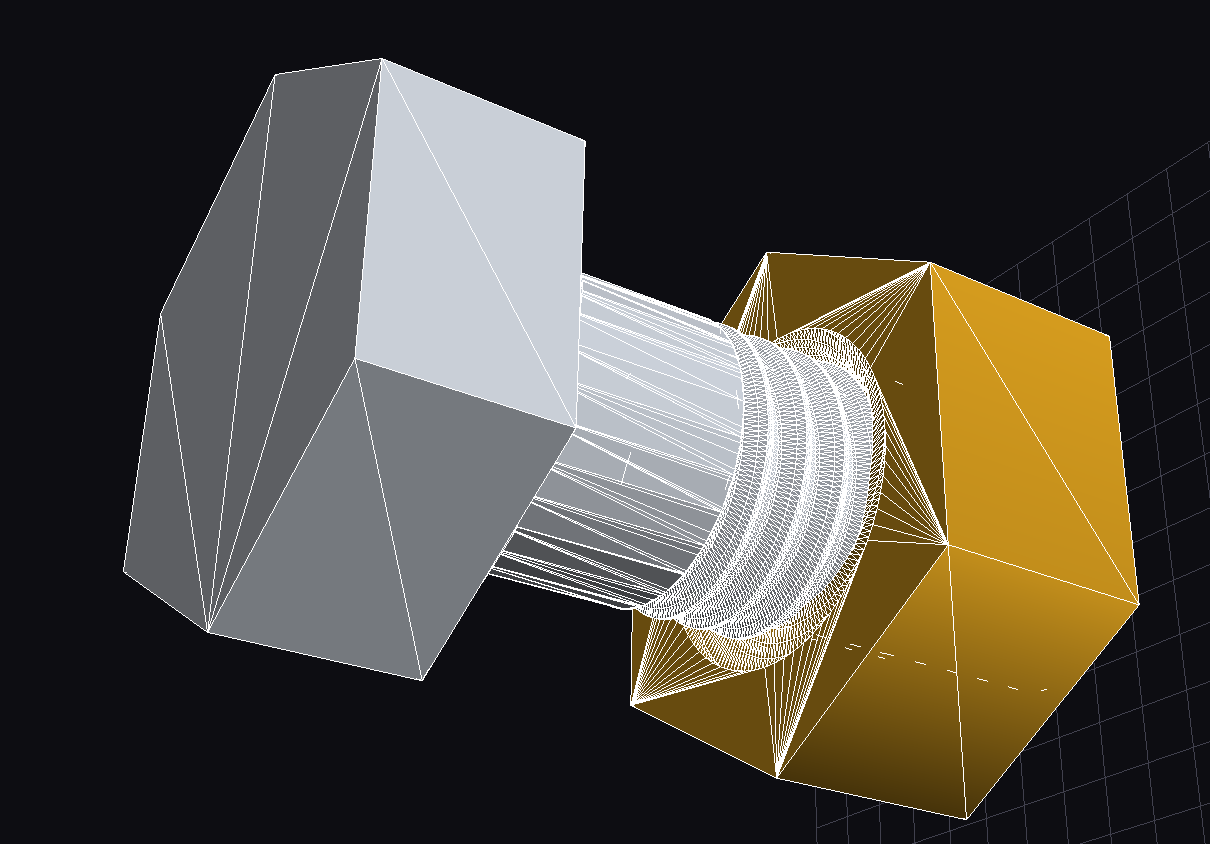
M10 hex-cap screw and nut pair demonstrating yapCAD's threaded fastener generation and material properties support, rendered with zinc (left) and brass (right) finishes.
Note
Many examples were authored with LLM assistance to illustrate automation-friendly workflows. The code lives in the repository and can be customized directly or via the included DSL (Domain Specific Language).
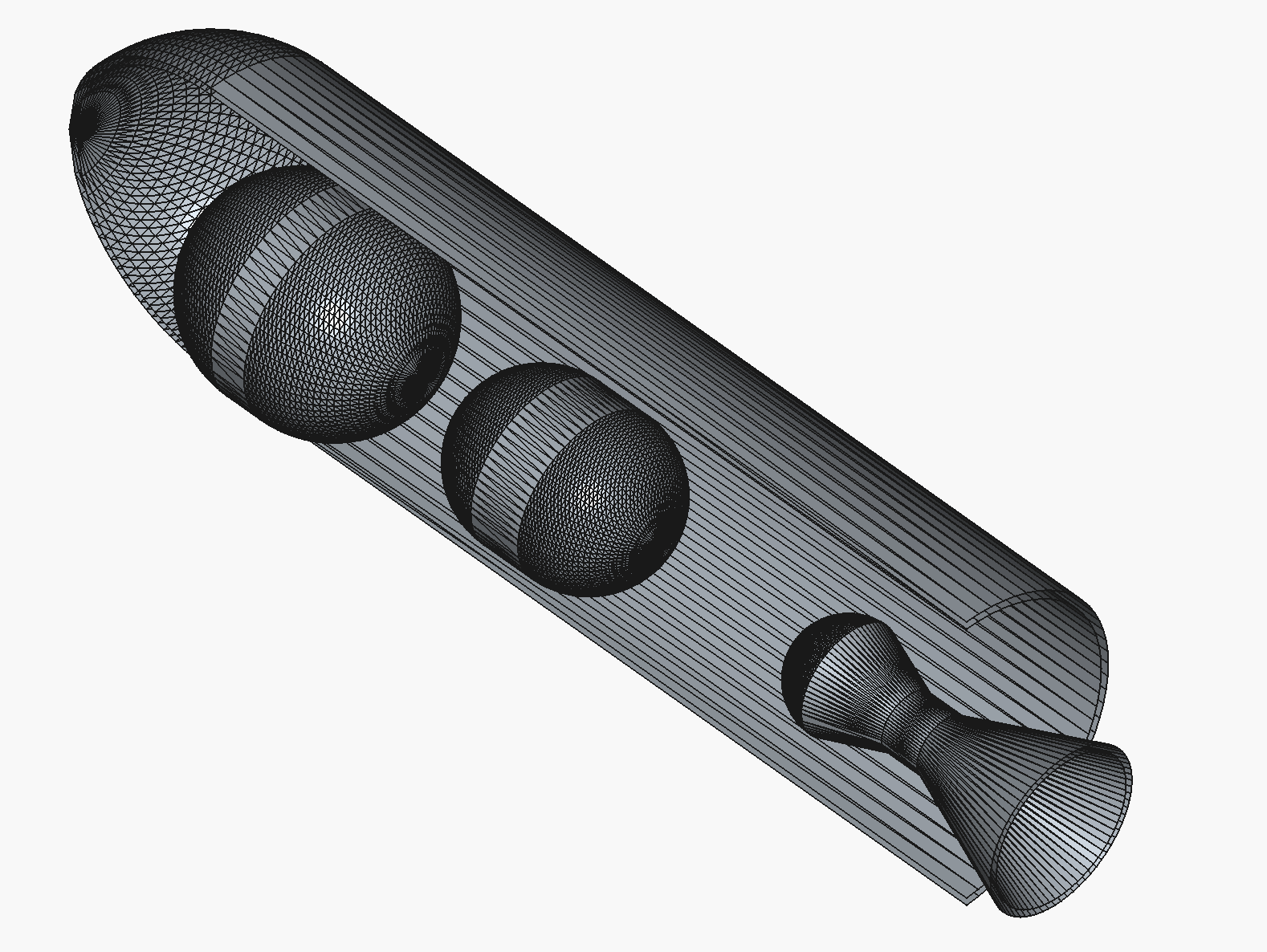
Internal layout generated with examples/rocket_cutaway_internal.py and
rendered from the exported STEP file in FreeCAD.
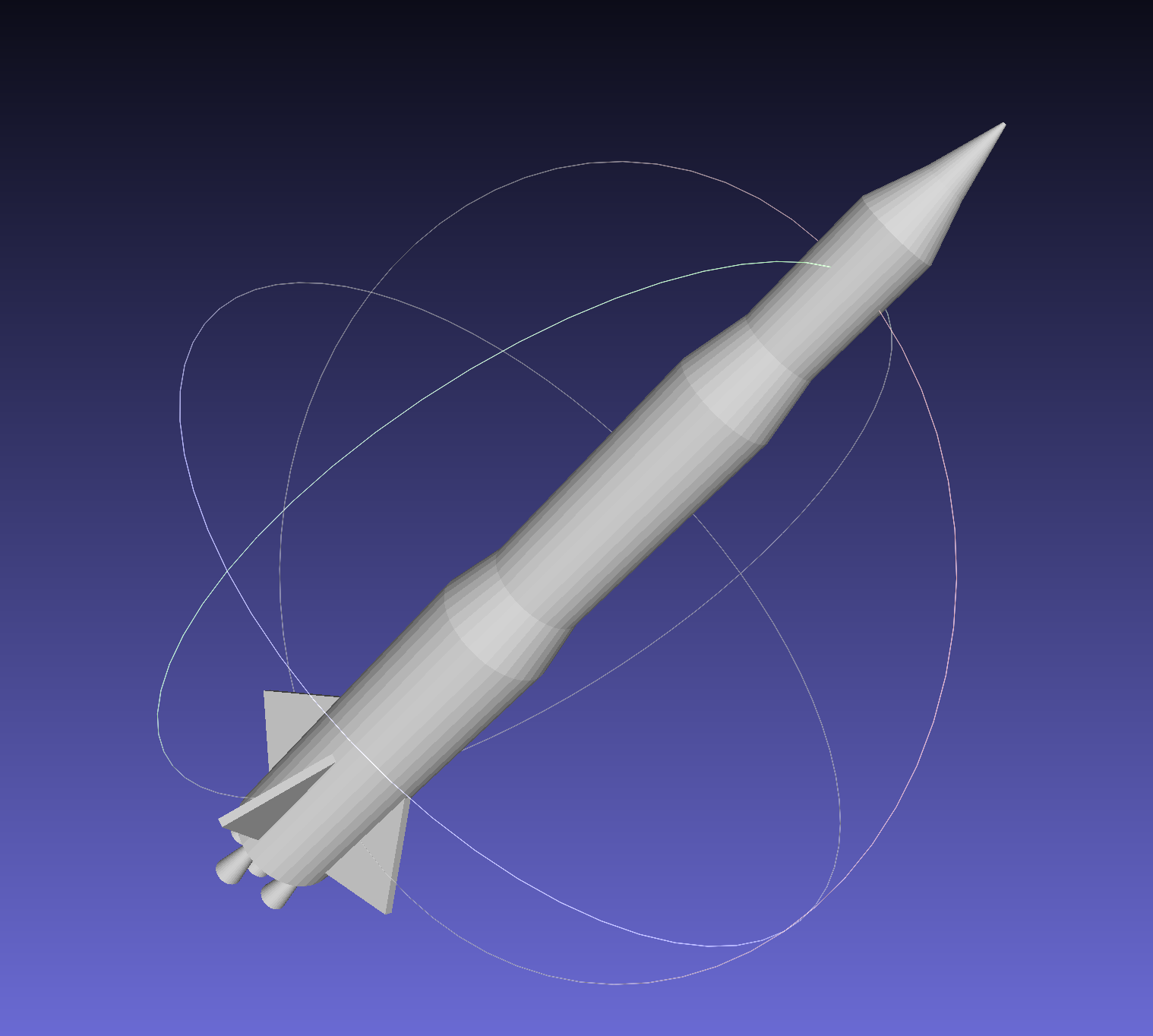
Multi-stage rocket assembly generated with examples/rocket_demo.py.
First and foremost, yapCAD is a framework for creating parametric, procedural, and generative design systems. Starting with the 0.5 release, the emphasis has shifted toward 3D solid workflows, including STL export for downstream slicing and simulation, while retaining support for DXF generation and computational geometry experiments.
yapCAD is in active development and already powers production design pipelines. Highlights from the 1.0 release cycle include:
- Parametric DSL: Full domain-specific language with lexer, parser, type checker,
and runtime interpreter. CLI supports
check,run,listcommands with DXF/STEP/STL export via--outputand package creation via--package. - OCC BREP Kernel: Full OpenCascade Technology integration via
pythonocc-corefor analytic solid modeling, STEP import/export, and exact boolean operations. - 2D Geometry: Ellipses, Catmull-Rom splines, NURBS curves, 2D boolean operations (union, difference, intersection) with DXF export for visualization.
- Materials & Fasteners: Material property schema with visual rendering support (density, color, finish) and complete metric/unified fastener catalogs with proper threading geometry.
- Adaptive Sweeps:
sweep_adaptive()with tangent-tracking profile orientation for complex path sweeps. - 3D Text:
text3d.pymodule withtext_solid()for extruded text andengrave_text()for cut-in text. Supports TrueType fonts (via freetype-py) with automatic system font detection (Arial, Helvetica) and built-in block font fallback. - Fillets and Chamfers:
brep.pyedge treatment operations viafillet_all_edges()andchamfer_all_edges()for rounding or beveling edges on BREP solids. - Helical Extrusion:
helical_extrude()creates smooth twisted extrusions with true helical surfaces for gears, columns, and spiral features. - Pattern Generation:
radial_pattern()andlinear_pattern()functions for creating circular and linear arrays of 2D/3D geometry, solids, and surfaces. .ycpkgproject packaging with manifest, geometry JSON, exports, and metadata.- Package signing with GPG and SSH key support for cryptographic verification.
- Validation schemas for test definitions and solver integration.
- YAML-based fastener catalogs with ISO metric and ASME unified thread specifications.
- Emacs major mode for DSL syntax highlighting (
editors/yapcad-dsl-mode.el). - 612 regression tests covering geometry, DSL, import/export, packaging, and validation.
Upcoming work (tracked in docs/yapCADone.rst) focuses on validation test
definition language, solver adapter framework, and provenance/security features.
If you are using yapCAD in interesting ways, feel free to let us know in the yapCAD discussions forum
yapCAD is a pure python library, so no special steps are required
for basic installation. You can install it a variety of ways, but the
recommended method is to use pip to install it into your local
site-packages directory, as follows:
pip install yapCAD --user
You can also clone the github repository and install from source:
git clone https://github.com/rdevaul/yapCAD.git
cd yapCAD
python setup.py install --user
Important
For full BREP kernel support, including STEP import/export, OCC-backed
boolean operations, and analytic solid modeling, you need to set up the
conda-based virtual environment. This is required because pythonocc-core
has complex binary dependencies that are best managed through conda.
To set up the OCC BREP environment:
# Create and activate the yapcad-brep environment
conda env create -f environment.yml
conda activate yapcad-brep

# Verify OCC is available
python -c "from OCC.Core.BRepPrimAPI import BRepPrimAPI_MakeBox; print('OCC available')"
Once activated, all BREP features are available:
--engine occfor exact boolean operations on analytic solids- STEP import via
yapcad.io.step_importer.import_step() - Round-trip BREP serialization in
.ycpkggeometry JSON - Bidirectional Native↔OCC BREP conversion
See docs/yapBREP.rst for detailed architecture documentation.
Without pythonocc-core, yapCAD operates in reduced functionality mode:
Available:
- 2D geometry (lines, arcs, ellipses, splines, polygons)
- DXF export for 2D geometry
- STL export (tessellated solids)
- Tessellated solid primitives
- Mesh-based boolean operations (lower fidelity)
- DSL interpreter (2D features, tessellated 3D)
- Package creation and validation
Not available:
- STEP import/export
- OCC-backed boolean operations
- Adaptive sweep operations
- Analytic solid modeling
For solid modeling workflows, the OCC environment is strongly recommended
Clone the repository (or install the package) and ensure PYTHONPATH includes the
top-level src directory. Example entry points:
DSL Examples (run with python -m yapcad.dsl run <file> <command>):
examples/new_2d_features.dsl- 2D curves, splines, ellipses, and boolean operations.examples/spur_gears.dsl- parametric spur gear generation.examples/figgear.dsl- involute gear profiles using figgear integration.examples/fasteners.dsl- metric and unified hex bolts and nuts with DSL builtins.
Python Examples:
examples/boxcut- parametric 2D joinery workflow (DXF output).examples/rocket_demo.py- generative multi-stage rocket with viewer + STL export.examples/rocket_cutaway_internal.py- subsystem layout/cutaway demo exporting STEP.examples/involute_gear_package- canonical gear library packaged as.ycpkg.examples/threaded_fastener_package.py- generates.ycpkgpackages for metric/unified screws, nuts, and washers with proper thread geometry and material properties.examples/import_demo.py- STEP/STL import demo showcasing the OCC BREP integration.
Emacs: A major mode for yapCAD DSL files is available in editors/yapcad-dsl-mode.el.
Features include syntax highlighting for keywords, types, and builtins, Python-style
indentation, and comment support. To install:
;; In your init.el or .emacs
(add-to-list 'load-path "/path/to/yapCAD/editors")
(require 'yapcad-dsl-mode)

;; Or with use-package
(use-package yapcad-dsl-mode
  :load-path "/path/to/yapCAD/editors"
  :mode "\\.dsl\\'")
For Doom Emacs, add to ~/.doom.d/config.el and run doom sync.
Online yapCAD documentation is available at https://yapcad.readthedocs.io/en/latest/ - key references:
docs/dsl_reference.md- DSL language reference: syntax, types, builtins, and CLI usage.docs/dsl_spec.rst- DSL design specification and architecture.docs/yapBREP.rst- OCC BREP implementation guide (installation, API, examples).docs/ycpkg_spec.rst-.ycpkgmanifest schema, packaging workflow, CLI usage.docs/metadata_namespace.rst- standard metadata blocks for materials, manufacturing, and analysis annotations.- Module references for
yapcad.geom,yapcad.geom3d,yapcad.geom3d_util,yapcad.brep, andyapcad.dsl. - Mesh validation workflow (
docs/mesh_validation.md,tools/validate_mesh.py).
DSL Quick Start:
# examples/spur_gears.dsl - parametric spur gear
module = 2.0
teeth = 20
pressure_angle = 20.0
thickness = 8.0

profile = involute_gear_profile(module, teeth, pressure_angle)
gear = extrude(profile, thickness)
export gear
Run with: python -m yapcad.dsl run examples/spur_gears.dsl --output gear.step
To build the HTML yapCAD documentation locally, install the documentation dependencies and run Sphinx from the project root:
python3 -m pip install -r docs/requirements.txt
make -C docs html
This will build the HTML documents in the build/sphinx/html
directory. You can also build documentation in the other formats
supported by Sphinx. See the Sphinx
documentation for more
information.
The preferred interchange format is the .ycpkg project package:
my_design.ycpkg/
├── manifest.yaml
├── geometry/primary.json
├── exports/
├── validation/
└── ...
Helper commands:
# Validate package structure / hashes
python tools/ycpkg_validate.py path/to/design.ycpkg

# Export STEP/STL/DXF from a package
python tools/ycpkg_export.py path/to/design.ycpkg --format step --format stl --output exports/
See docs/ycpkg_spec.rst for details.
The repository includes a comprehensive pytest suite that exercises both core geometry primitives and visual rendering capabilities. First, set up the testing environment:
# Create and activate virtual environment
pyenv local 3.12  # or use python3.12 directly
python3 -m venv v_312
source v_312/bin/activate

# Install dependencies
pip install -r requirements.txt
pip install pytest pytest-cov
Run the core computational geometry tests (including triangle, metadata, validation, and STL exporter checks) without interactive displays:
# Run all non-visual tests
PYTHONPATH=./src pytest tests/ -m "not visual"

# With coverage reporting (default)
PYTHONPATH=./src pytest tests/ -m "not visual" --cov=src

# Skip coverage for faster execution
PYTHONPATH=./src pytest tests/ -m "not visual" --override-ini addopts=
yapCAD includes visual tests that create interactive 3D renderings to verify
geometry generation and display functionality (for example,
tests/test_mesh_view.py::test_mesh_view_visual_normals). These require a
display and user interaction:
# Run all visual tests (opens interactive windows)
./run_visual_tests_venv.sh

# Run specific visual tests by pattern
./run_visual_tests_venv.sh test_geom      # Only test_geom* visual tests
./run_visual_tests_venv.sh surface        # Tests matching "surface"
./run_visual_tests_venv.sh Face           # Face-related tests

# Alternative: Manual pytest execution
VISUALTEST=true PYTHONPATH=./src pytest tests/ -m visual

# Or run individual visual tests
VISUALTEST=true PYTHONPATH=./src pytest tests/test_geom3d.py::TestSurface::test_surface -s
Note: Visual tests require closing each interactive window to proceed to the next test. Use the dedicated run_visual_tests_venv.sh script for the best experience, as it runs each test in an isolated subprocess to prevent early termination.
yapCAD provides a comprehensive framework for computational geometry and CAD operations in Python, supporting both 2D and 3D workflows:
Output Formats:
- AutoCAD DXF for 2D drawings (via ezdxf)
- STL export for 3D printing and mesh workflows
- STEP export for CAD interchange (requires OCC environment)
- OpenGL visualization for interactive 2D/3D preview (via pyglet)
Geometry Engine:
- Native 2D geometry: lines, arcs, ellipses, splines, NURBS curves
- Parametric DSL for declarative geometry definition
- Projective (homogeneous) coordinate representation enabling affine transforms
- Boolean operations: native engine plus optional trimesh backends (Manifold/Blender)
BREP Modeling (with OCC):
- Full OpenCascade Technology integration for exact solid modeling
- Primitive solids: box, sphere, cylinder, cone with analytic representation
- Sweep operations: extrude, revolve, adaptive sweep with tangent tracking
- STEP import/export with topology preservation
The architecture is designed to make simple 2D drawings easy while enabling
advanced computational geometry and GPU-accelerated systems. See
docs/yapCADone.rst for the current implementation status and roadmap.
(for a more complete list, see the examples folder)
It's pretty easy to make a DXF drawing or a 3D model with yapCAD. Here is a DXF example:
from yapcad.ezdxf_drawable import *
from yapcad.geom import *

#set up DXF rendering
dd=ezdxfDraw()
dd.filename = "example1-out"

## make dxf-renderable geometry

# make a point located at 10,10 in the x-y plane, rendered as a small
# red cross and circle
dd.pointstyle = 'xo' # also valid are 'x' or 'o'
dd.linecolor = 1 # set color to red (DXF index color 1)
dd.draw(point(10,10))

# make a line segment between the points -5,10 and 10,-5 in the x-y plane
# and draw it in white

dd.linecolor='white' # set color by name
dd.draw(line(point(-5,10),
             point(10,-5)))

# make an arc with a center at 0,3 with a radius of 3, from 45 degrees
# to 135 degrees, and draw it in aqua

dd.linecolor=[0,255,255] # RGB tripple, corresponds to 'aqua'
dd.draw(arc(point(0,3),3,45,135))

# write out the geometry as example1-out.dxf
dd.display()
For a 3D example that generates a complete rocket assembly and exports STL and STEP:
from pathlib import Path
from examples.rocket_demo import build_rocket, export_stl
from yapcad.io.step import write_step

components, assembly = build_rocket()
export_stl(assembly, Path("rocket_demo.stl"))
write_step(assembly, Path("rocket_demo.step"))
There is also an advanced rocket_grid_demo.py example featuring grid fins, a linear exploded view, and simultaneous STL/STEP export.
The yapCAD system isn't just about rendering, of course, it's about computational geometry. For example, if you want to calculate the intersection of lines and arcs in a plane, we have you covered:
from yapcad.geom import *

# define some points
a = point(5,0)
b = point(0,5)
c = point(-3,0)
d = point(10,10)

# make a couple of lines
l1 = line(a,b)
l2 = line(c,d)

# define a semicircular arc centered at 2.5, 2,5 with a radius of 2.5
# extending from 90 degrees to 135 degrees

arc1=arc(point(2.5,2.5),2.5,90.0,270.0)

# calculate the intersection of lines l1 and l2
int0 = intersectXY(l1,l2)

# calculate the intersection of the line l1 and the arc arc1
int1 = intersectXY(l1,arc1)

print("intersection of l1 and l2:",vstr(int0))
print("intersection of l1 and arc1:",vstr(int1))
And of course yapCAD supports calculating intersections between any simple and compound, or compound and compound geometry object.
There are lots more examples available to demonstrate the various computational geometry and rendering capabilities of yapCAD, including 3D geometry and OpenGL rendering.
yapCAD distinguishes between "pure" geometric elements, such as lines, arcs, etc., and drawn representations of those things, which might have attributes like line color, line weight, drawing layer, etc. This distinction is important, because the pure geometry exists independent of these attributes, which are themselves rendering-system dependent.
More importantly, for every geometric element you decide to draw, there will typically be many more - perhaps dozens - that should not be in the final rendering. By separating these two elements - computation and rendering - yapCAD makes them both more intentional and reduces the likelihood of certain type of drawing-quality issues, such as redundant or spurious drawing elements, that can cause confusion problems for computer-aided manufacturing (CAM).
For example, you might construct a finished drawing that includes a drill pattern that consists of circles (drill holes with centers) that follow a complex, geometrically constrained pattern. This pattern is itself the result of numerous computational geometry operations, perhaps driven by parameters relating to the size and shape of other parts.
In a program like Autodesk's Fusion360, you would typically use construction lines and constraints to create the underlying geometric pattern. These additional construction elements would have to be removed in order to make a clean DXF export of your drawing. On more than one occasion yapCAD's author has created headaches by failing to remove some of these elements, confusing CAM technicians, causing delays, and sometimes resulting in expensive part fabrication errors.
Thus, yapCAD allows you to work freely with computational geometry without cluttering up your drawing page, since you specifically decide what to draw. It also means you can do computational geometry in yapCAD without ever invoking a rendering system, which can be useful when incorporating these geometry operations as part of a larger computational system, such as a tool-path generator.
As a rule, in yapCAD pure geometry representations capture only the
minimum necessary to perform computational geometry, and the rest gets
dealt with by the rendering system, which are subclasses of Drawable
that actually make images, CAD drawings, etc.
For the sake of uniformity, all yapCAD vectors are stored as projective geometry 4-vectors. (see discussion in architecture, below) However, most of the time you will work with them as though they are 3-vectors or 2-vectors.
It would be annoying to have to specify the redundant coordinates you
aren't using every time you specify a vector, so yapCAD provides you
with the vect function. It fills in defaults for the z and w
parameters you may not want to specify. e.g.
>>> from yapcad.geom import *
>>> vect(10,4)
[10, 4, 0, 1]
>>> add(vect(10,4),vect(10,9))  ## add operates in 3-space
[20, 13, 0, 1.0]
Of course, you can specify all three (or even four) coordinates using
vect.
Since it gets ugly to look at a bunch of [x, y, z, w] lists that all end
in 0, 1] when you are doing 2D stuff, yapCAD provides a
convenience function vstr that intelligently converts yapCAD
vectors (and lists that contain vectors, such as lines, triangles, and
polygons) to strings, assuming that as long as z = 0 and w = 1, you
don't need to see those coordinates.
>>> from yapcad.geom import *
>>> a = sub(vect(10,4),vect(10,9)) ## subtract a couple of vectors
>>> a
[0, -5, 0, 1.0]
>>> print(vstr(a)) ## pretty printing, elide the z and w coordinates
>>> [0, -5]
Pure geometric elements in yapCAD form the basis for computational geometry operations, including intersection and inside-outside testing. Pure geometry can also be drawn, of course - see drawable geometry below.
In general, yapCAD pure geometry supports the operations of parametric sampling, intersection calculation, inside-outside testing (for closed figures), "unsampling" (going from a point on the figure to the sampling parameter that would produce it), and bounding box calculation. yapCAD geometry is based on projective or homogeneous coordinates, thus supporting generalized affine transformations; See the discussion in architecture, below.
Simple, which is to say non-compound, geometry includes vectors, points, and lines. A vector is a list of exactly four numbers, each of which is a float or integer. A point is a vector that lies in a w > 0 hyperplane; Points are used to represent transformable coordinates in yapCAD geometry. A line is a list of two points.
Simple geometry also includes arcs. An arc is a list of a point and a
vector, followed optionally by another point. The first list element is
the center of the arc, the second is a vector in the w=-1 hyperplane
(for right-handed arcs) whose first three elements are the scalar
parameters [r, s, e]: the radius, the start angle in degrees, and
the end angle in degrees. The third element (if it exists) is the normal
for the plane of the arc, which is assumed to be [0, 0, 1] (the x-y
plane) if it is not specified. Arcs are by default right-handed, but
left-handed arcs are also supported, with parameter vectors lying in the
w=-2 hyperplane.
A list of more than two points represents a multi-vertex polylines. If
there are at least four points in the list and the last point is the
same as the first, the polyline figure is closed. (We sometimes refer to
these point-list polygons or polylines as poly() entities.) Closed
coplanar polylines are drawn as polygons and may be subject to
inside-outside testing. Like other elements of pure geometry, polylines
are subject to sampling, unsampling, intersection calculation, etc.
If instead of sharp corners you want closed or open figures with rounded
corners, you should use Polyline or Polygon instances. Instances
of these classes are used for representing compound geometric elements
in an XY plane with C0 continuity. They differ from the point-list-based
poly() representation in that the elements of a Polyline or
Polygon can include lines and arcs as well as points. These elements
need not be contiguous, as successive elements will be automatically
joined by straight lines. Polygons are special in that they are
always closed, and that any full circle elements are interpreted as
"rounded corners," with the actual span of the arc calculated after
tangent lines are drawn.
The Polygon class supports boolean operations, as described below,
and also supports the grow() operation that makes generating a
derived figure that is bigger by a fixed amount easy. This grow feature
is very useful for many engineering operations, such as creating an
offset path for drill holes, CAM paths, etc.
yapCAD supports boolean set operations on Polygon instances,
allowing you to construct more complex two-dimensional figures from
union, intersection, and difference operations. Note that the difference
operation can result in the creation of disjoint geometry in the form of
two or more closed figures with positive area (see below), or closed
figures with holes.
See Example 11 for a relatively simple example of boolean operations, and Example 12 for a more complex example.
yapCAD employs the convention that closed figures with right-handed geometry (increasing the sampling parameter corresponds to points that trace a counter-clockwise path) represent "positive" area, and that closed figures with left-handed geometry represent holes. This distinction is currently not operational, but will be important for future development such as turning polygons into rendered surfaces and extruding these surfaces into 3D.
Boolean difference operations can result in disjoint figures. It is also possible to combine yapCAD geometric elements in geometry lists, which is to say a list of zero or more elements of yapCAD pure geometry, which enforce no continuity constraints. Geometry lists provide the basis for yapCAD rendering.
The idea is that you will do your computational geometry with "pure"
geometry, and then generate rendered previews or output with one or more
Drawable instances.
In yapCAD, geometry is rendered with instances of subclasses of
Drawable, which at present include ezdxfDrawable, a class for
producing DXF renderings using the awesome ezdxf package, and
pygletDrawable, a class for interactive 2D and 3D OpenGL rendering.
To setup a drawing environment, you create an instance of the
Drawable base class corresponding to the rendering system you want
to use.
To draw, create the pure geometry and then pass that to the drawbles's
draw() method. To display or write out the results you will invoke
the display method of the drawable instance.
DXF rendering using ezdxf and interactive OpenGL rendering using
pyglet are currently supported, and the design of yapCAD makes
it easy to support other rendering backends.
Under the hood, yapCAD is using projective coordinates, sometimes called homogeneous coordinates, to represent points as 3D coordinates in the w=1 hyperplane. If that sounds complicated, its because it is. :P But it does allow for a wide range of geometry operations, specifically affine transforms to be represented as composable transformation matrices. The benefits of this conceptual complexity is an architectural elegance and generality.
Support for affine transforms is at present rudimentary, but once a proper matrix transform stack is implemented it will allow for the seamless implementation and relatively easy use of a wide range of transformation and projection operations.
What does that buy you? It means that under the hood, yapCAD uses the same type of geometry engine that advanced CAD and GPU-based rendering systems use, and should allow for a wide range of computational geometry systems, possibly hardware-accelerated, to be built on top of it.
The good news is that you don't need to know about homogeneous coordinates, affine transforms, etc., to use yapCAD. And most of the time you can pretend that your vectors are just two-dimensional if everything you are doing happens to lie in the x-y plane.
So, if you want to do simple 2D drawings, we have you covered. If you want to build a GPU-accelerated constructive solid geometry system, you can do that, too.
The involute gear helper is derived from the MIT-licensed
figgear project. The vendored
implementation lives in yapcad.contrib.figgear and its original
license text is preserved in third_party/figgear_LICENSE.
This project has been set up using PyScaffold 3.2.3. For details and usage information on PyScaffold see https://pyscaffold.org/.