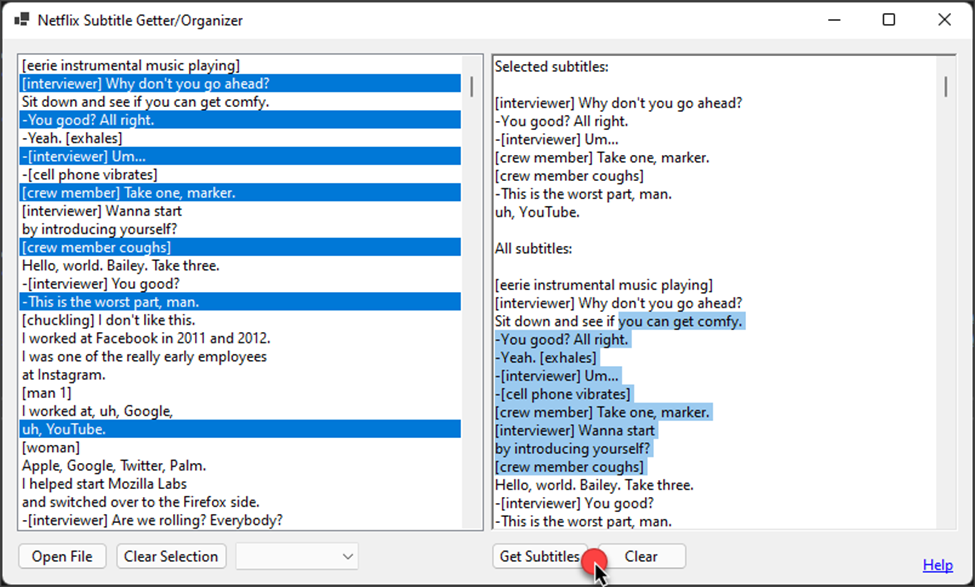
TL;DR: Accepts the files Netflix stores their subtitles in and displays the subtitles in a RichTextBox.
Aimed at students taking notes while watching Netflix documentaries, this app allows users to open the files containing their video's subtitles and highlight the subtitles they feel are important as they watch their videos. The highlighted subtitles are then displayed over all the subtitles in a RichTextBox, where the information can be copied and then pasted into the user's word processor of choice. Click here for a soothing 5-minute explanation/demo or here for a silent UI demo.
You'll need a file to open from Netflix. For video instructions, click here or on the Help link in the app.
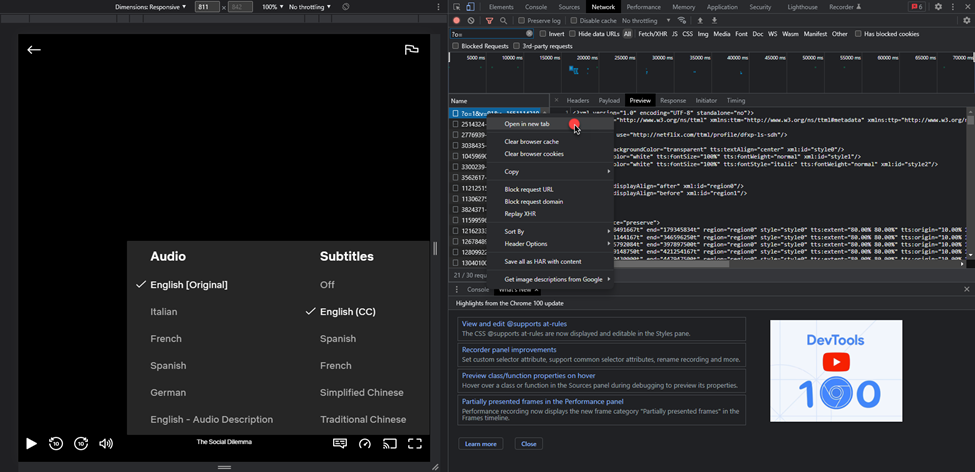
- In Chrome, play the video you'd like subtitles for. Ensure subtitles are turned off.
- Access the browser's Developer Tools (Ctrl+Shift+I)
- Select the Network tab.
- Turn subtitles on.
- A file beginning with "?o=" will appear.
- Right-click the file and select "Open in new tab" to download it.
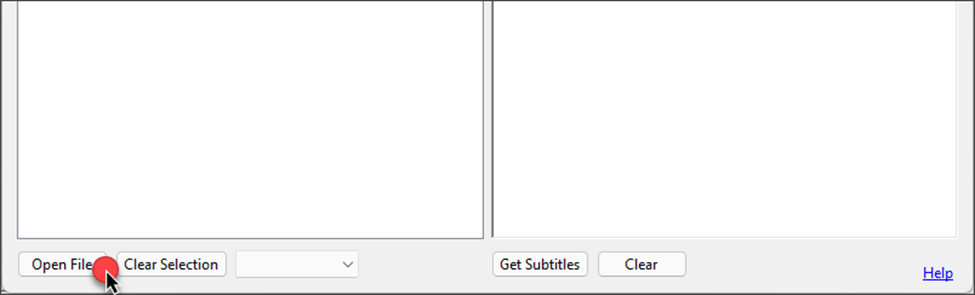
Now that you have your file, open it with the application by selecting Open File.
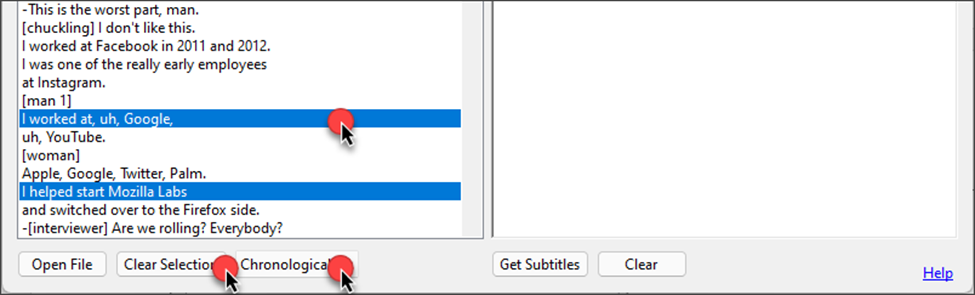
With the file opened, you can begin selecting notable subtitles as your video progresses.
- To clear your selection, select Clear Selection.
- To sort subtitles, select the combo box and choose from Chronological, Random, and Alphabetical orders.
When you're finished, select Get Subtitles.
- Selected subtitles are displayed to the right, above all subtitles.
- Text here can be selected and copied to work on in your word processor of choice.