
Desktop application to generate character avatars and biographies.
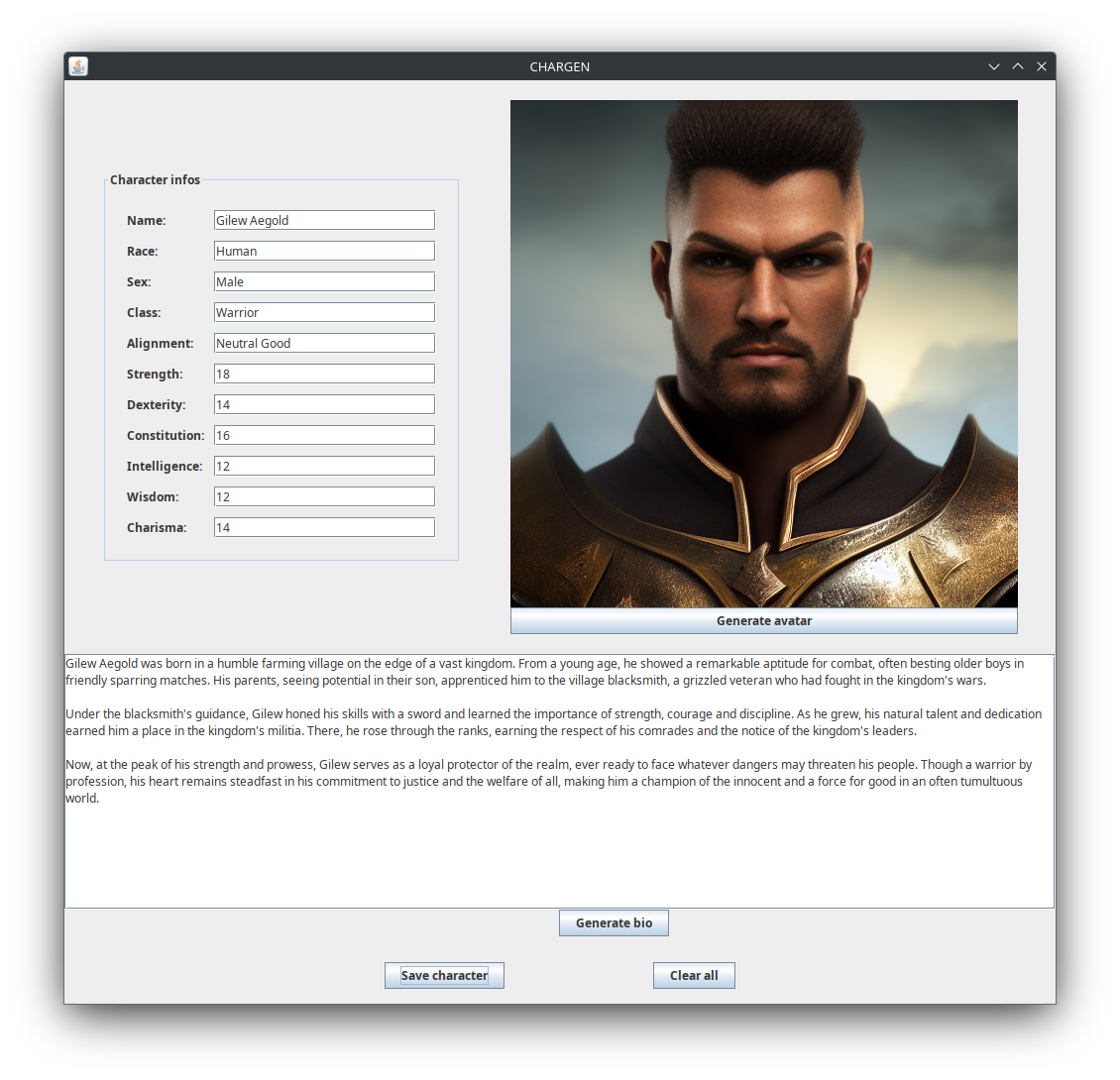
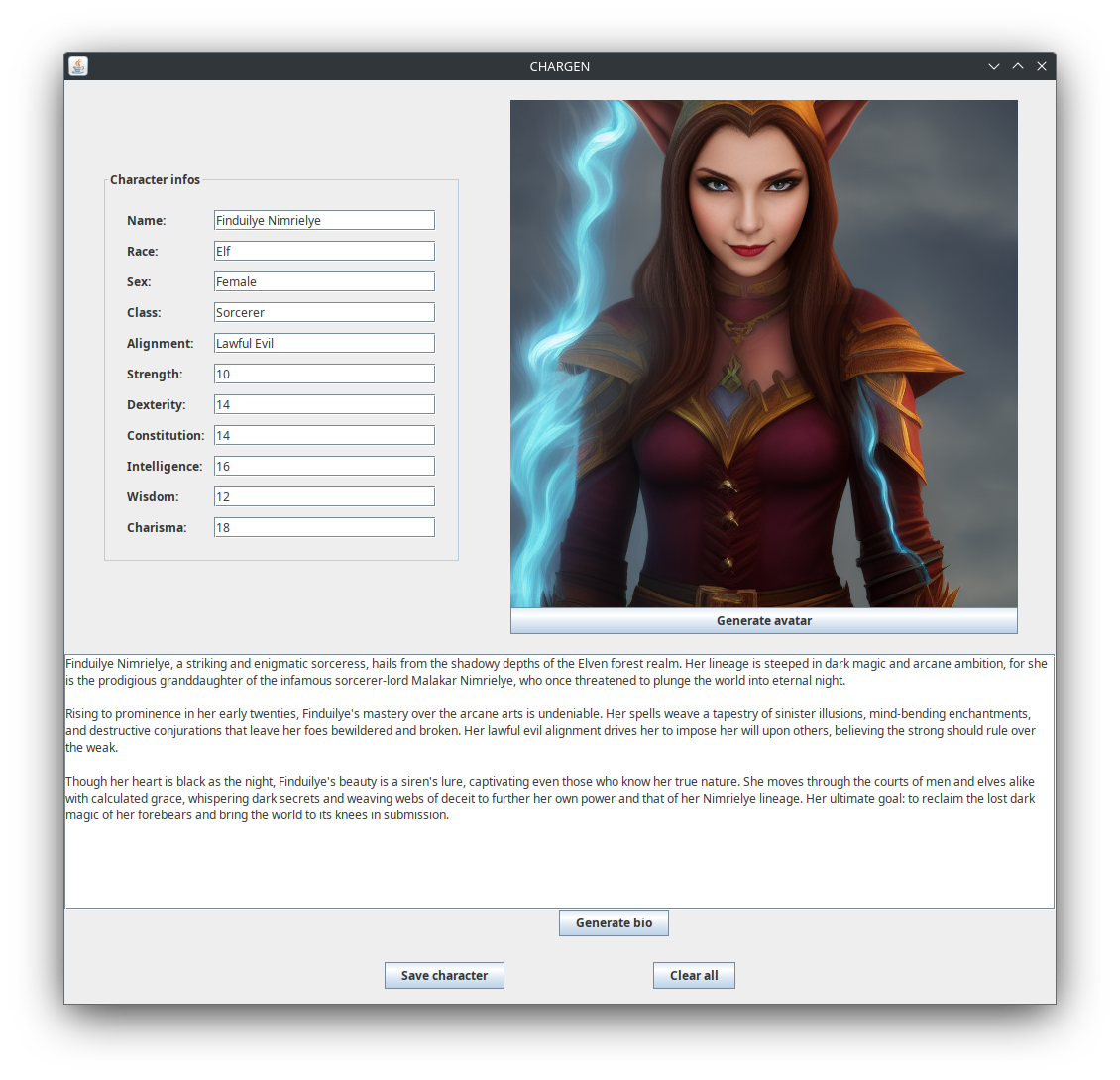
Type in the information about your character on the top left form. After that, click on "Generate avatar" button to generate an avatar, and "Generate bio" to generate a biography.
If you like the result, click on the "Save character" button at the bottom to save the generated content to disk. A folder will be created with the date and name of the character, containing a JPEG image for the avatar and a plain text file for the biography with all the information of the character.
The application assumes you have an OpenAI-compatible LLM server listening on port 8080 of your computer and a Stable Diffusion image generation model server listening on port 7860 (both ports can be configured through command line options, check section below). If you have experience configuring and running them, feel free to use your favorite ones - if you do not have experience, the easiest way to get the LLM part running is to use llamafile, while for the Stable Diffusion model the classic solution is text-generation-webui. Both of these will already start the servers listening on the expected ports by default.
The application has been developed using as reference models Llama 3.1 8B for text generation, and Stable Diffusion 1.5 for image generation.
Don't like the results you have been getting? Just try different models!
The application is written in Java, so you will need to have the Java runtime installed. Assuming it has already been installed, either download the Jar file from the latest entry in the Releases section of this repository or build the project following the instructions below, and execute it.
Command to run:
$ java -jar Chargen.jar
If building the project with Maven, instead of Chargen.jar be sure to use the path to the generated jar, which will be in the target directory and have the version as a suffix.
If you are using ollama for the LLM server, you will have to at a minimum pass the name of the model you want to chat with when starting the application by using the -lm <model_name> option. You will probably also want to use ollama's default port, 11434. Here is an example of how to chat with llama3.1 using ollama (check ollama's documentation for other model options):
$ java -jar Chargen.jar -lp 11434 -lm llama3.1
Here is the list of command-line options available when starting the application:
-
-lp <port_number>: Set the port where to reach the LLM server, <port_number> must be an integer indicating a port in your machine with a LLM server listening. Defaults to 8080. -
-sp <port_number>: Set the port where to reach the Stable Diffusion server, <port_number> must be an integer indicating a port in your machine with a Stable Diffusion server listening. Defaults to 7860. -
-lm <model_name>: Specify the name of the LLM model to be used, <model_name> must be a string. Necessary when using ollama as backend for text generation, has no effect when using llamafile. -
-lt <temperature>: Specify the temperature to be used when generating text, the larger the temperature the more randomness it includes. must be a decimal number, and usually fits in the [0.0-1.0) range. Make sure to use a dot (.) and not a comma to separate the parts of the number. Defaults to 0.9.
These options are independent of each other, and can be combined as desired and in any order. Examples of using some of them can be found in section "How to run" of readme.
This is a simple Maven project, so the easiest way to build it is running mvn clean package in the Chargen folder (assuming Maven is installed - if not, check its site and install from there). A jar file containing everything the application needs to run will be created at Chargen/target/Chargen-<VERSION>.jar.
To get a short intro to how the code is organized, you can check architecture.md.