Files
The Files tab allows you to manage images, documents and any other assets that your test may need to use which are not handled within the tests, data tables or templates sections. It is your library of global, publicly accessible files that can be used anywhere – from your templates to test logic.
The buttons in the top-right allow you to perform various functions (hover on them to see) and that part is quite self-explanatory. It is a good idea to keep your files organised into folders rather than uploading everything to the root directory, in case you need to delete or update them in future.
1. Click the + icon to add a new folder. Name it ‘images’ and click Create.
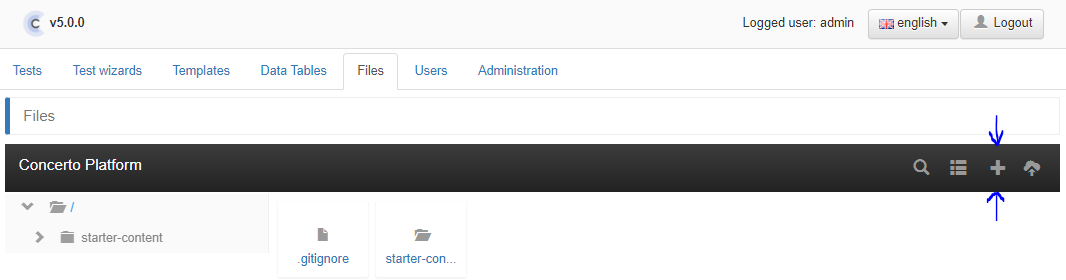
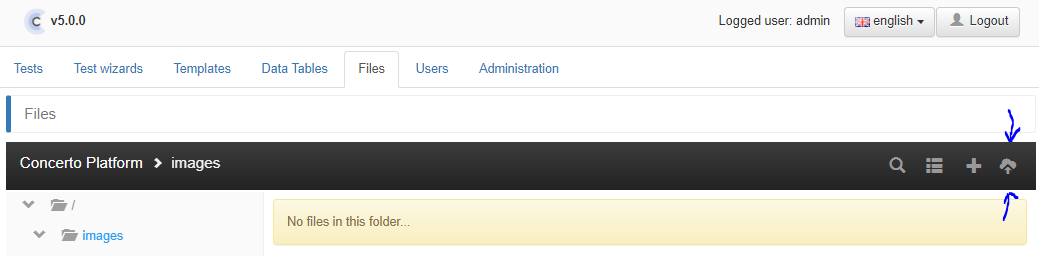
2. Double-click on the icon for the new images folder. This will take you into the folder. Now click the upload icon:
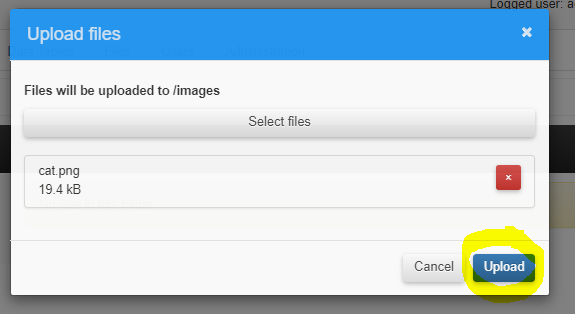
3. Select files and choose the file from your computer that you want to upload. You can select several files if you want at this step. When you’re done click Upload.
You can double click on your uploaded image to see a preview. You can also right-click on items in the file manager to see a contextual menu with further actions (Download, rename, etc.). One of these functions is Permissions, which when used in conjunction with Accessibility settings will determine what users of your Concerto instance will be able to do with files (read/write/execute).
It is good practice to use a special Concerto R function to refer to files. The R function gets the URL of the file based on where the Concerto server is hosted. The advantage of this method is that if you move your Concerto test to a new server, you can upload the files again and the test won’t need to be updated with a new domain name. This is critical if you want to export your test and then have other people import it to their own Concerto panel.
The R function is:
`concerto.file.getUrl(“cat.png”)`
It will return a result like this:
https://www.yourdomain.com/bundles/concertopanel/files/cat.png