Home
English | 简体中文
The logic behind Due Helper was to keep track of tasks that have due dates and fall under different categories.
Thus, tasks can only be created when a category is selected, and a due date is filled.
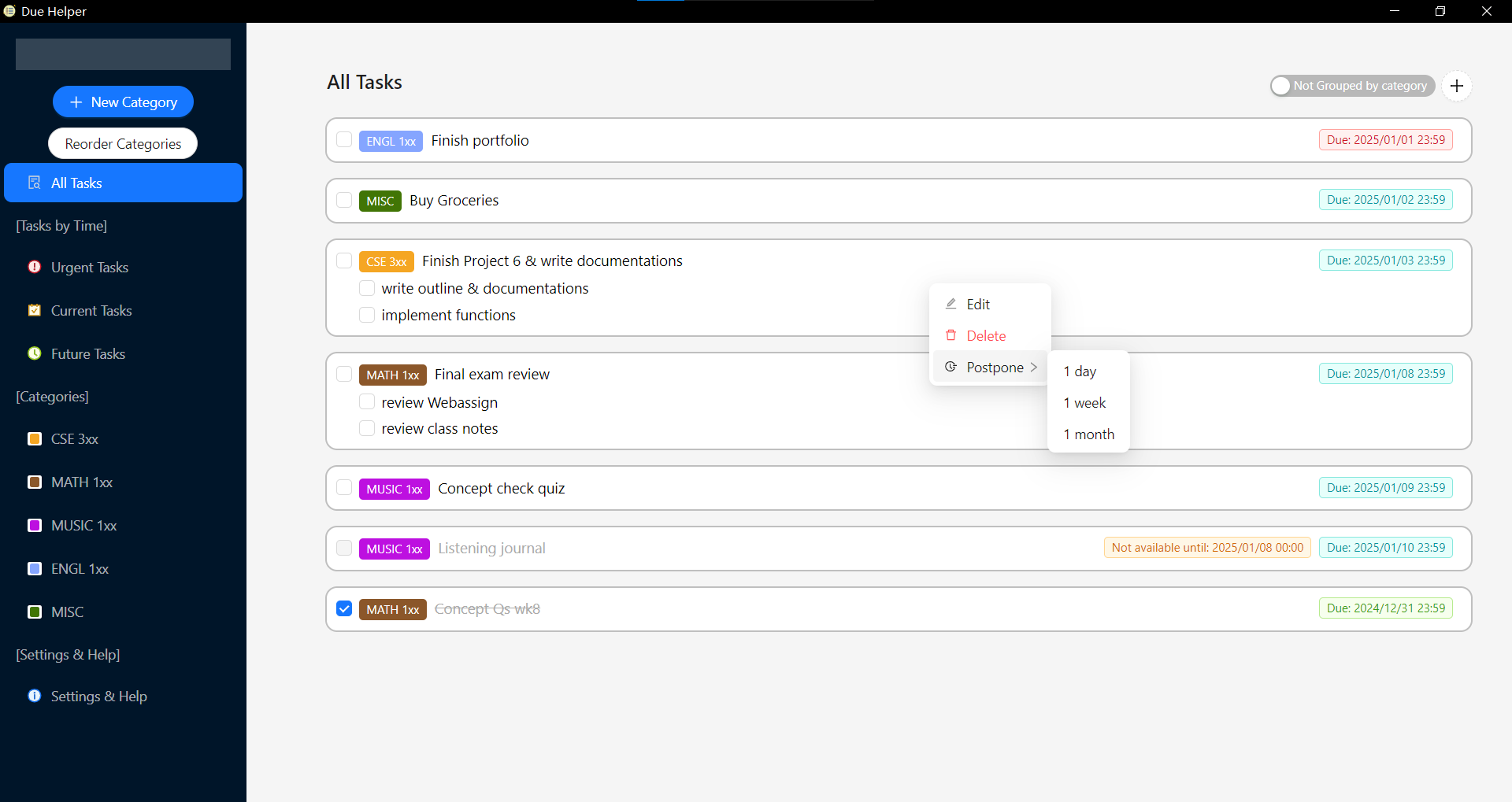
Each Task will contain the following information:
- a check box that represents completeness
- a tag that shows its category name
- the description of this task
- a list of subtasks (if any) that contains their completion status and description
- (if set) a tag of available date (hover to see time difference from current moment)
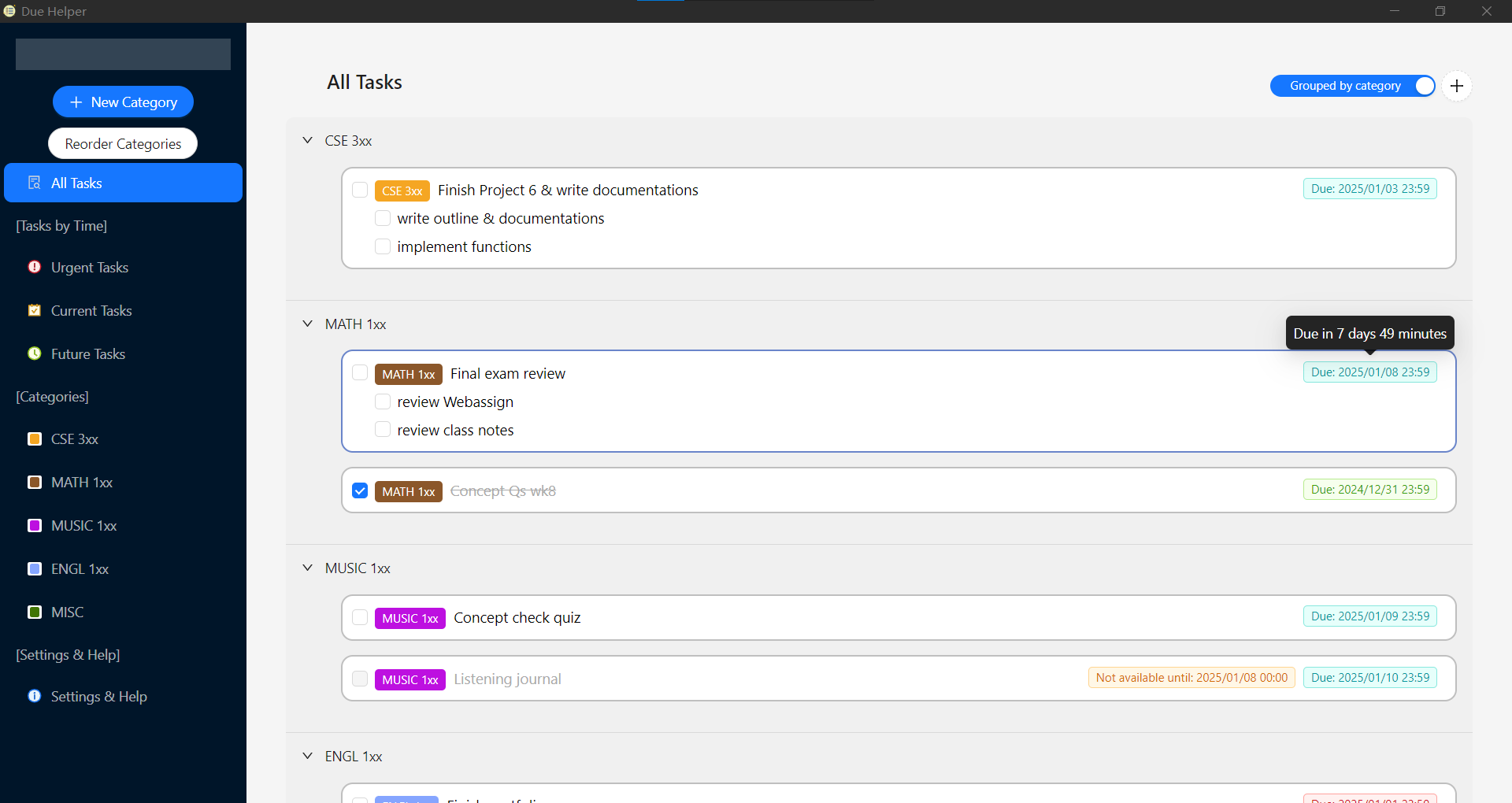
- a tag of due date (hover to see time difference from current moment)
The app will help you sort out all the tasks in the following manner:
- available tasks with the closer due date will be towards the top of the list
- unavailable tasks will be in the middle
- completed tasks will be at the bottom
Add your categories before being able to add tasks under it.
You can do that by clicking the new category button on the left side bar.
You could use the color picker to customize your category tag color.
- Double click on the category name under
[Categories]on the left side bar to enable edit name, press enter or click outside the input box to save, press esc to discard changes. - Or right click on the category name under
[Categories]on the left side bar click edit and use the input to rename.
- Right click on the category name under
[Categories]on the left side bar click edit and use the color picker to change colors.
Right click on the category name under [Categories] on the left side bar click delete and confirm the popup message to delete.
Note: Deleting a category will also delete all tasks under it, so be careful!
Click the Reorder button on the left side bar and drag the category names in the list in the popup to reorder them.
Click the rounded plus icon in the top right corner to add a task.
Right click on that task and select edit.
Check the checkbox to toggle between complete or incomplete.
Right click on that task, select delete in the context menu.
Right click on that task, hover over Postpone in the context menu then choose the duration you want to postpone.
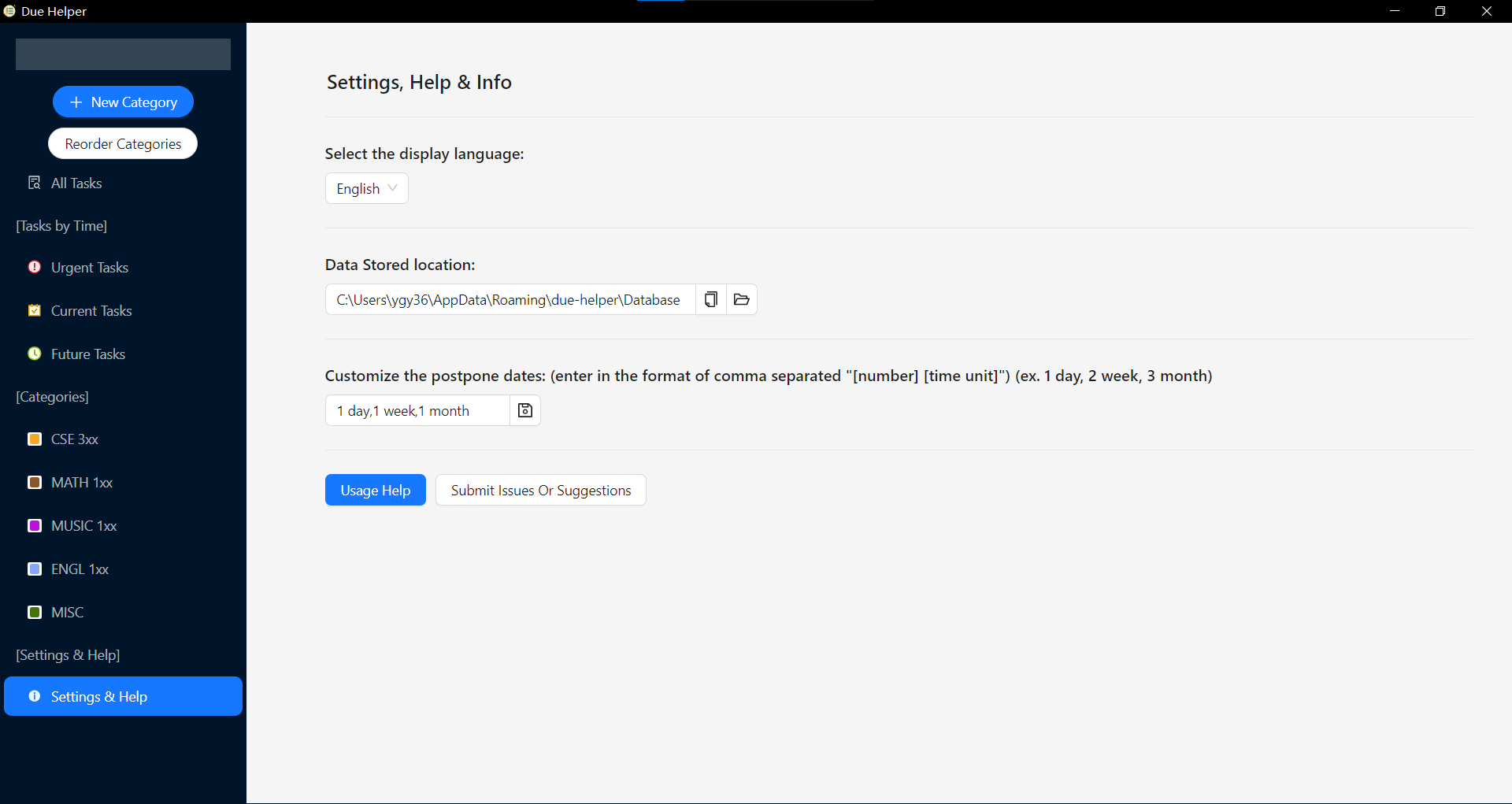
Note: You can customize the quick postpone durations in the Settings & Help page.
In the add task or edit task popup, click the Add sub-task button, enter the description and click Add sub-task.
In the sub-tasks section in add task or edit task popup, directly change the sub-task description in the text area.
In the sub-tasks section in add task or edit task popup, click the red trashcan button of the sub-task you want to delete.
All Tasks will show all the tasks you added in this app.
Urgent Tasks will only show incomplete and available tasks that are due very soon (tasks that due in less than 24 hours).
Current Tasks will show all available tasks (complete or incomplete).
Future Tasks will show all unavailable tasks.
Under [Categories], clicking on the category name will show all tasks under that category.
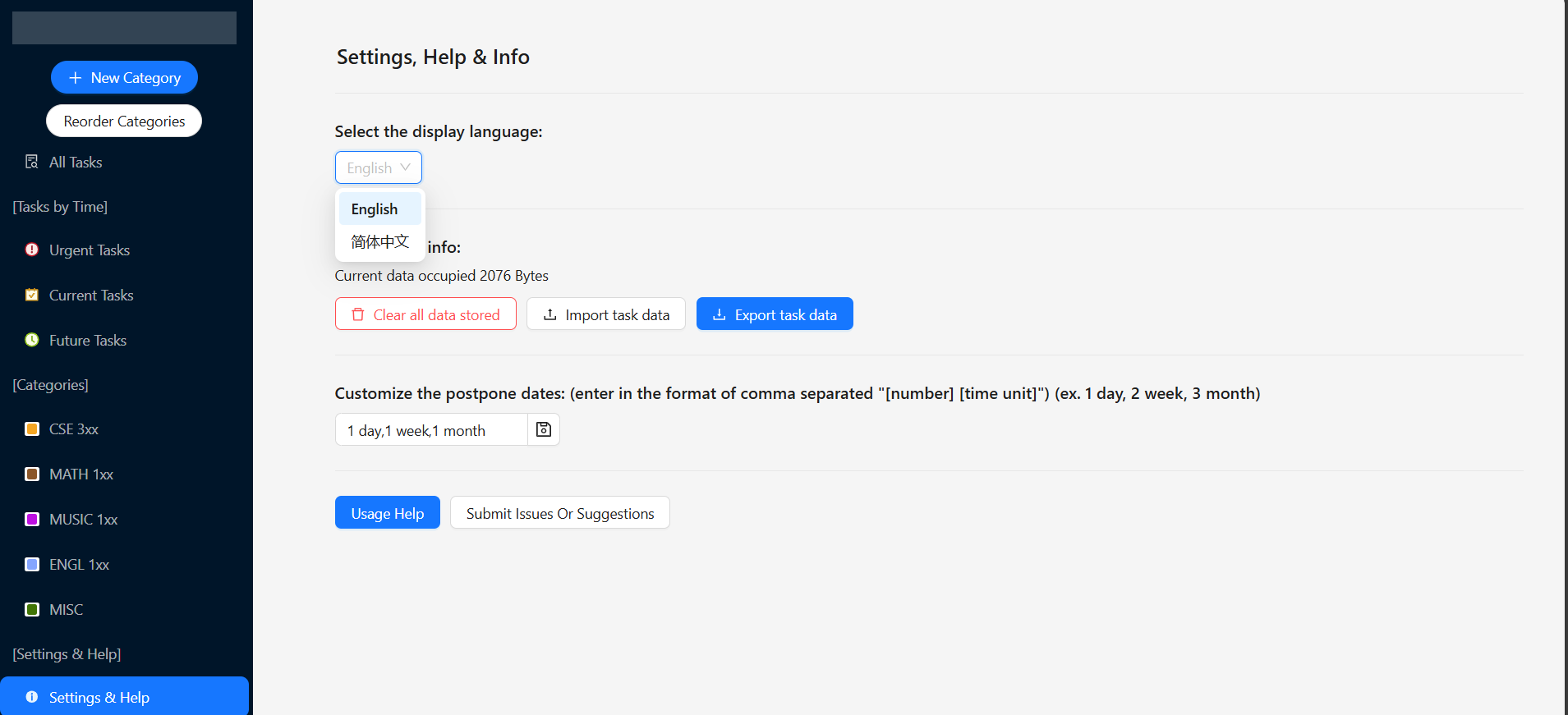
Settings & Help will show the data storage location, allow you to change the display language and provide links to Usage Help (this wiki) and issues page.
Default settings for grouping by categories is off. You can click the switch in the top right corner to turn it on.
Due Helper runs entirely locally, and it stores its data under user data folder.
You could view the data storage path in Settings & Help page selected from the side bar.
You could also click the buttons to copy that path, or open storage folder in explorer.
After fetching the static website from GitHub Pages, Due Helper runs entirely locally, and it stores data in the browser localStorage under its deployed origin name.
You could view the data usage stats in Settings & Help page selected from the side bar.
You could also choose to clear all app data (be careful), import or export task data (json) on the same page.